Synapse — A Mobile-First AI Agent with MCP Support
From booking office seats to building a pocket AI agent.
Table of Contents
- The Itch
- The Gap
- What Synapse Is
- Then It Grew
- Architecture
- What It Looks Like in Practice
- Self-Updating
- The Point
The Itch
I built OfficeAschi a while back — a straightforward web app for communicating that you’re coming to the office on a particular date. Pick a date, book a seat if one is available, done.
Over time, practical interaction patterns emerged. You want to book a seat for an entire week except Wednesday. You want to cancel Thursday and Friday because plans changed. The kind of decisions we make every week based on convenience. But the UI forced you to tap into each date individually, check availability, book, go back, tap the next date. Cumbersome.
OfficeAschi already had a REST backend, so I thought: wrap every API endpoint as a self-discovering MCP tool. Swagger descriptions become tool descriptions. Every REST route becomes an individual tool. One afternoon of work, and now any MCP-capable client could book, cancel, or query seats through natural language.
That was great — on a laptop. VS Code with Copilot, or any desktop agent, could talk to the MCP server and handle seat booking through conversation. But I book my office seats from my phone, usually while commuting.
The Gap
Android doesn’t have a decent generic MCP agent. I tried a few apps. Some were thinly-veiled subscription funnels for a specific LLM provider. Others were fixated on running models on-device — not feasible on a mid-range phone, and beside the point when I already have API access to the models I want.
The gap was clear: a simple, LLM-provider-agnostic agent that can connect to any arbitrary MCP server. No subscription lock-in, no on-device inference requirement. Bring your own API key, point it at your MCP servers, go.
So I started building Synapse.
What Synapse Is
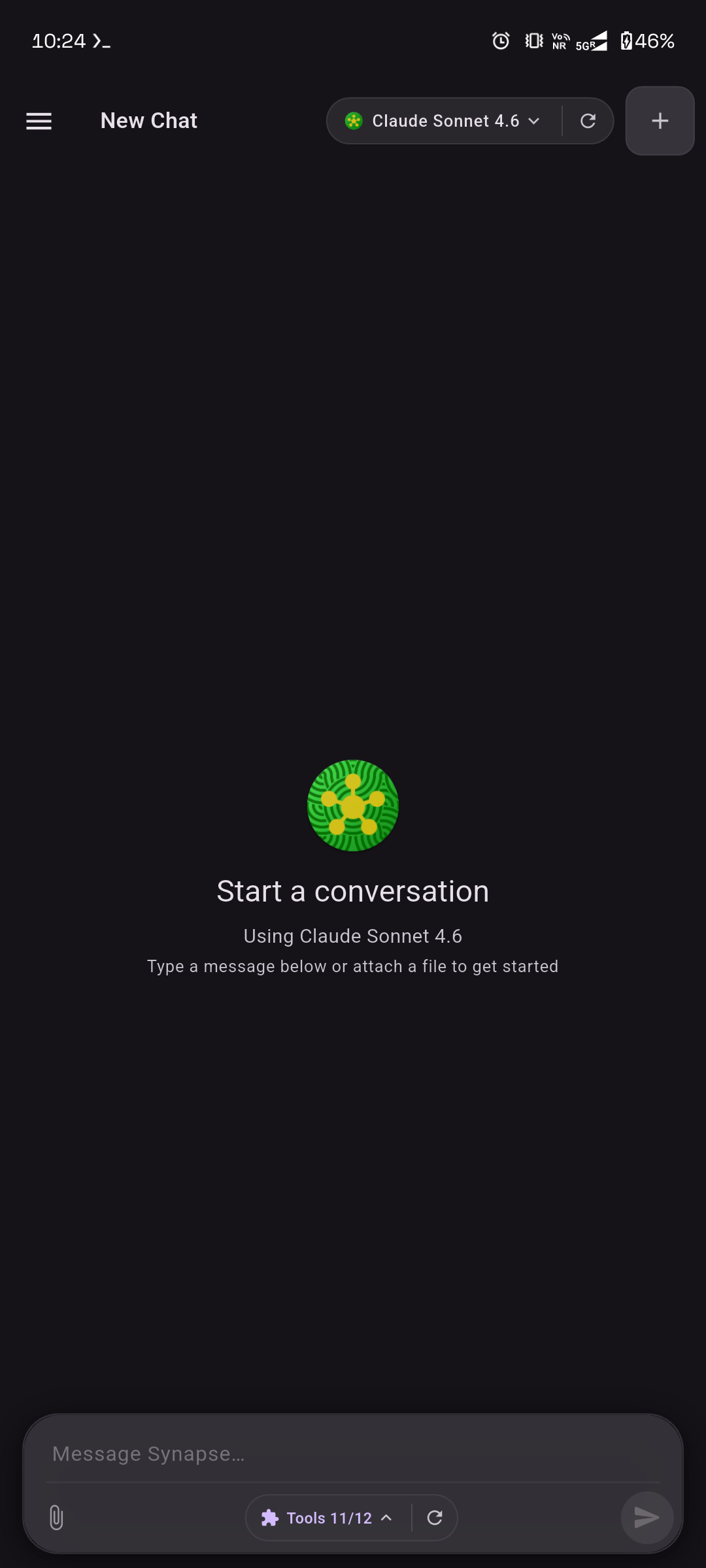
The new chat screen. The top bar shows the active model (Claude Sonnet 4.6 here) with a dropdown to switch, a refresh button to re-fetch the model catalog, and a ”+” to start a new session. At the bottom, the input bar has a file attachment button, a “Tools 11/12” indicator showing how many tools are active out of total, and a send button.
Synapse is a Flutter app — primarily targeting Android — that connects to any OpenAI-compatible LLM provider (OpenAI, OpenRouter, GitHub Models, NVIDIA, Hugging Face) and any MCP server over HTTP Streamable or SSE transport.
The core loop is simple:
- You type a message.
- The LLM sees your message plus all discovered MCP tools.
- If it decides to call a tool, Synapse executes the call via MCP, feeds the result back, and the LLM responds in natural language.
That’s it. That was the original scope.
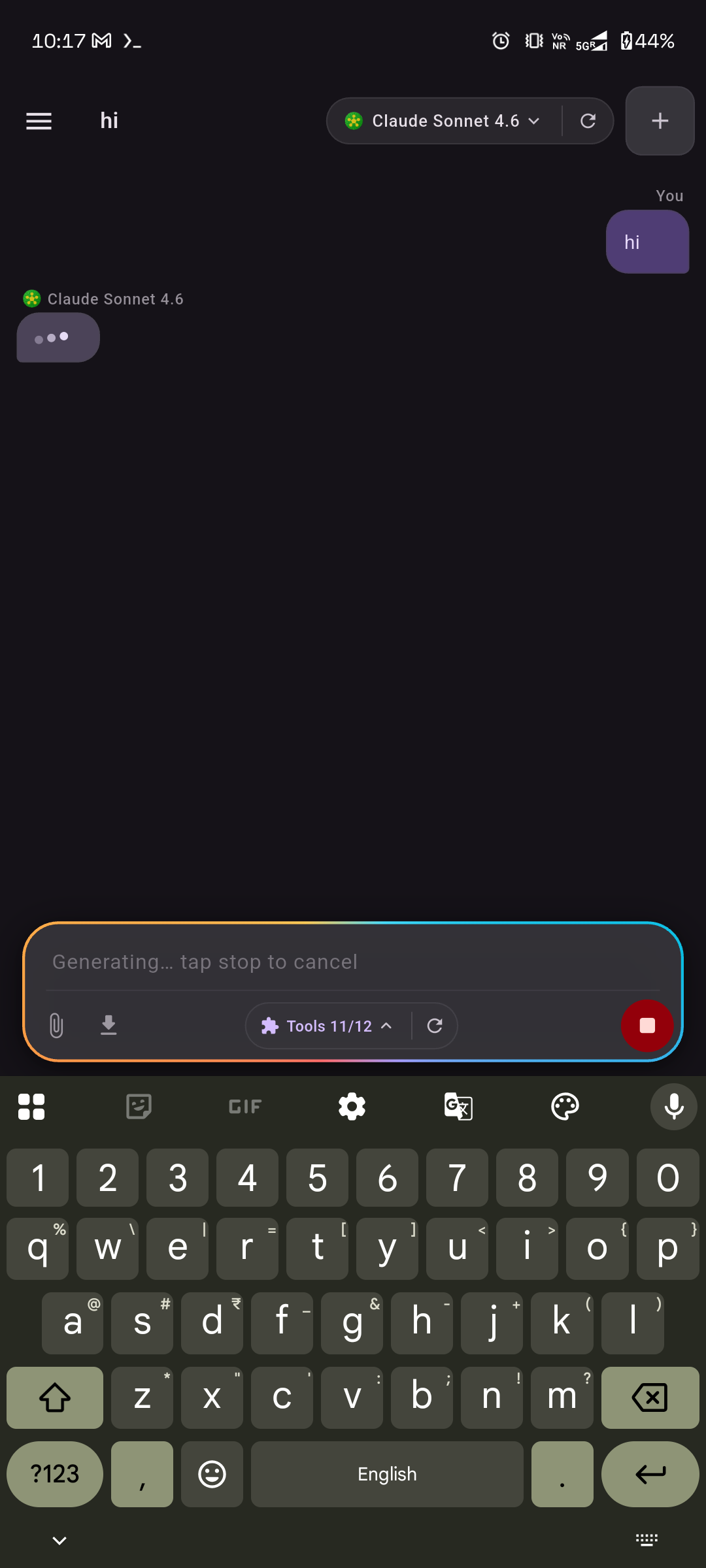
A message sent. The session title auto-updates to the first message (“hi” in this case). The LLM label shows “Claude Sonnet 4.6” with a typing indicator while the response streams in token by token. The input field switches to “Generating… tap stop to cancel” with a red stop button replacing the send button.
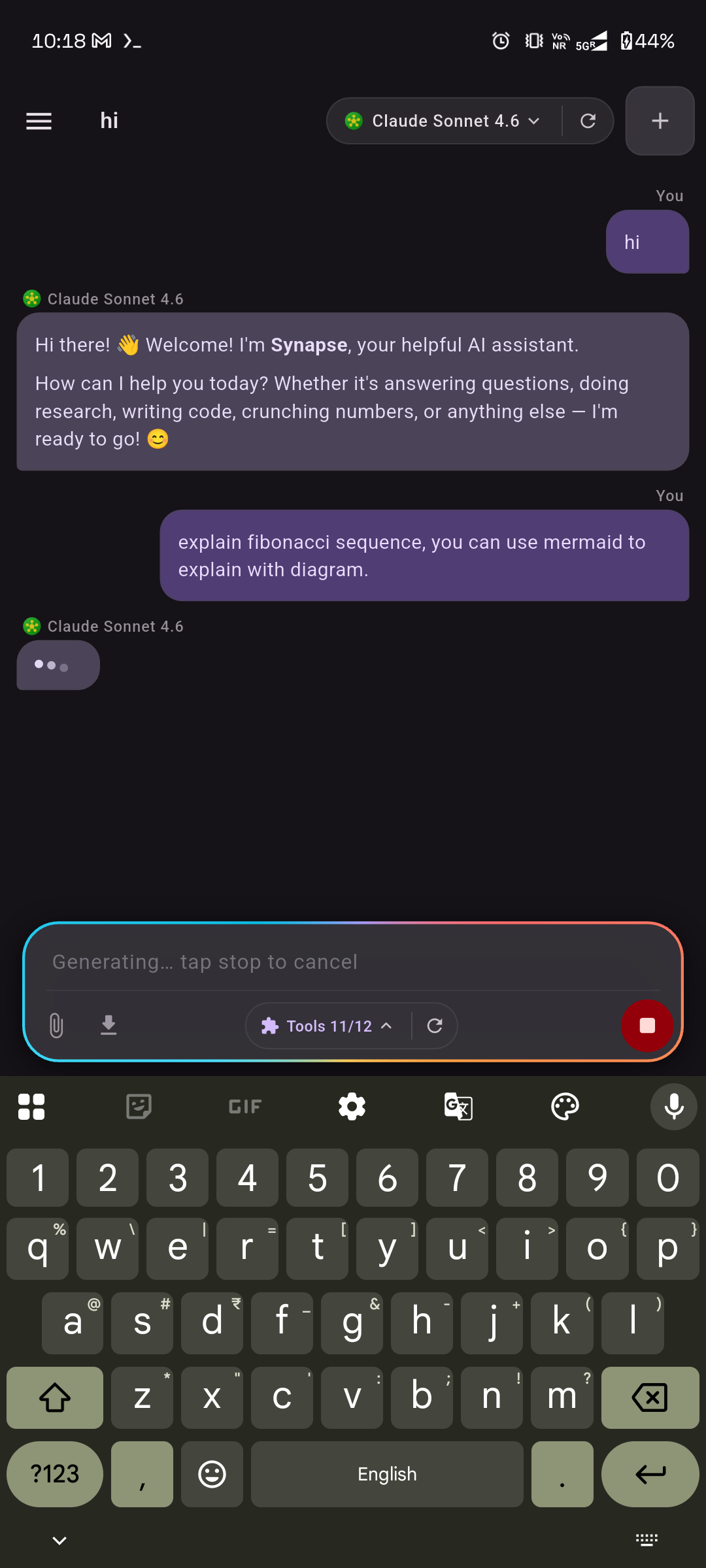
The first response has arrived — rendered markdown with bold text and emoji. A follow-up question asks for a Fibonacci explanation with Mermaid diagrams. The LLM is streaming the second response. User messages appear right-aligned in purple, assistant messages left-aligned in dark cards.
Then It Grew
Once you have a working agent on your phone, the “why not” questions start.
Why not add web search? Now Synapse has built-in Brave Search and DuckDuckGo scraping — no API keys needed — plus a web crawler that can fetch and extract content from any URL the search returns.
Why not let it run code? A sandboxed Lua 5.3 executor lets the LLM write and run scripts for computation, data processing, or quick calculations. State can persist across calls within a session.
Why not give it memory? A local memory system lets the LLM store and retrieve facts across conversations — personal preferences, project notes, anything organized by category. Memories persist on disk.
Why not let it manage files? A file manager tool gives the LLM read/write access to a scoped directory on the device.
Why not let it call APIs directly? A built-in REST client supports GET, POST, PUT, PATCH, DELETE, HEAD, and OPTIONS — useful when you don’t have an MCP server for a service but do have its API docs.
Why not SSH? An SSH executor lets the LLM run commands on remote servers. Useful for quick server checks or deployments from your phone.
Why not notifications? A notify_user tool lets the LLM push system notifications — reminders, alerts, status updates — that show up in the Android notification shade even when the app is in background.
Why not delegate? A multi-agent system with a Researcher (web search + crawling + REST), Coder (Lua execution), and Summarizer (pure LLM reasoning) lets the orchestrator break complex tasks into sub-tasks and delegate to the right specialist.
Here’s the full set of built-in tools today:
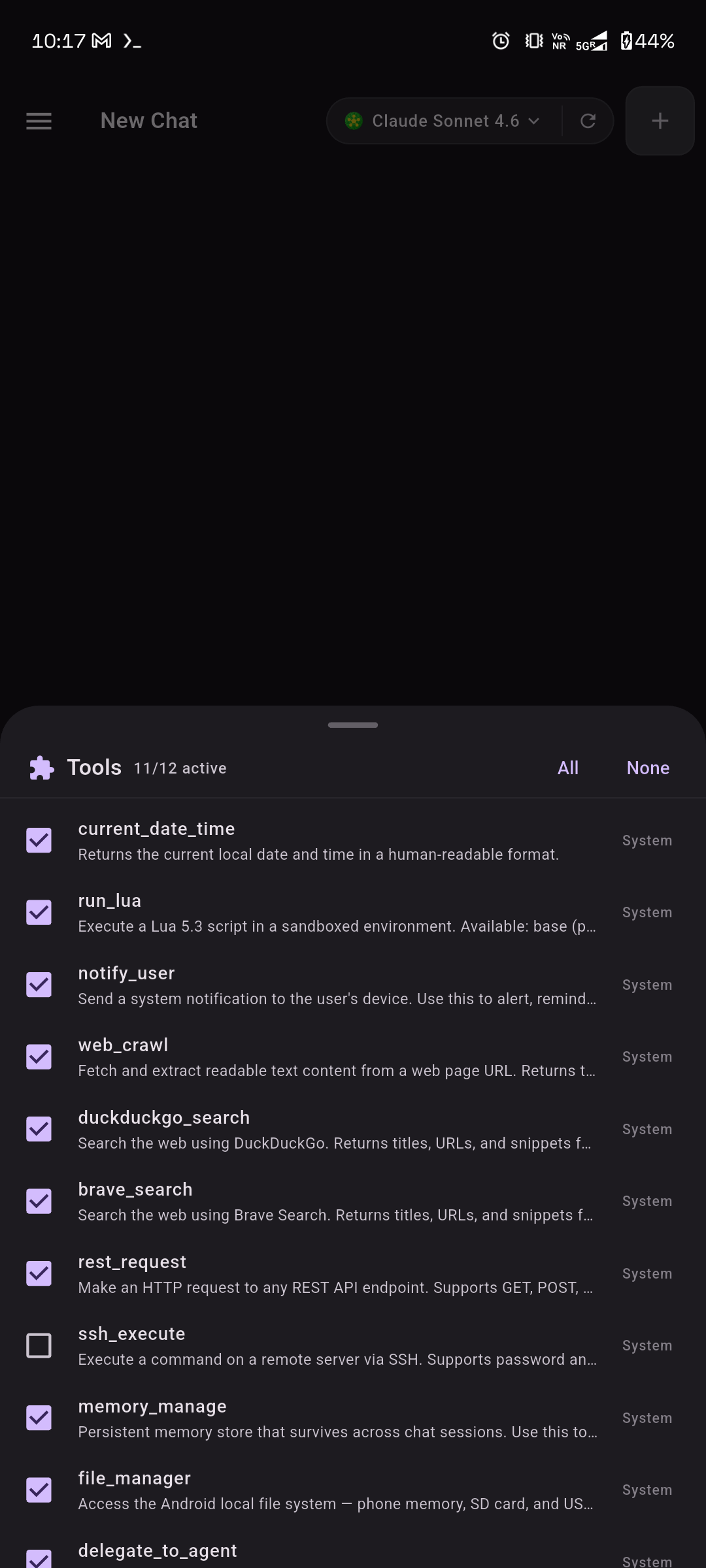
The tools panel slides up from the bottom. Each tool shows its name, a truncated description, and a “System” label indicating it’s a built-in tool (MCP server tools would show the server name instead). Per-tool checkboxes let you enable or disable individual tools — here ssh_execute is unchecked. “All” and “None” toggles at the top for quick selection. The header reads “Tools 11/12 active”.
| Tool | What It Does |
|---|---|
current_date_time | Returns current date and time with timezone |
run_lua | Executes Lua 5.3 scripts in a sandbox |
notify_user | Sends Android system notifications |
web_crawl | Fetches and extracts content from URLs |
duckduckgo_search | Web search via DuckDuckGo |
brave_search | Web search via Brave |
rest_request | HTTP client for arbitrary API calls |
ssh_execute | Runs commands on remote servers via SSH |
memory_manage | Persistent cross-session memory |
file_manager | Scoped file system access |
delegate_to_agent | Routes tasks to specialist sub-agents |
manage_plan | Task planning and tracking |
Plus every tool from every MCP server you connect.
Architecture
lib/
  agents/           # Multi-agent system (registry, executor, built-in agents)
  models/           # Data models (chat, sessions, LLM providers, MCP)
  screens/          # Chat UI, responsive shell, settings
  services/         # All the muscle — LLM client, MCP client, search,
                    #   crawling, Lua, SSH, REST, memory, file system,
                    #   notifications, auto-update
  settings/         # Persistent settings repository
  theme/            # Material 3 + Material You theming
  widgets/          # Mermaid diagrams, reusable UI components
The tool-calling flow:
User message
  → LLM returns tool_calls
    → Synapse executes each tool (MCP or built-in)
      → Results fed back to LLM
        → Final natural-language response
For the multi-agent path, the orchestrator uses delegate_to_agent as a tool call. The sub-agent gets its own system prompt, restricted tool set, and independent LLM conversation. Its result flows back as a tool result, and the orchestrator synthesizes the final answer.
What It Looks Like in Practice
Chat responses render full GitHub-Flavored Markdown — headers, tables, code blocks with syntax highlighting (Atom One Dark/Light), and Mermaid diagrams rendered as actual visuals.
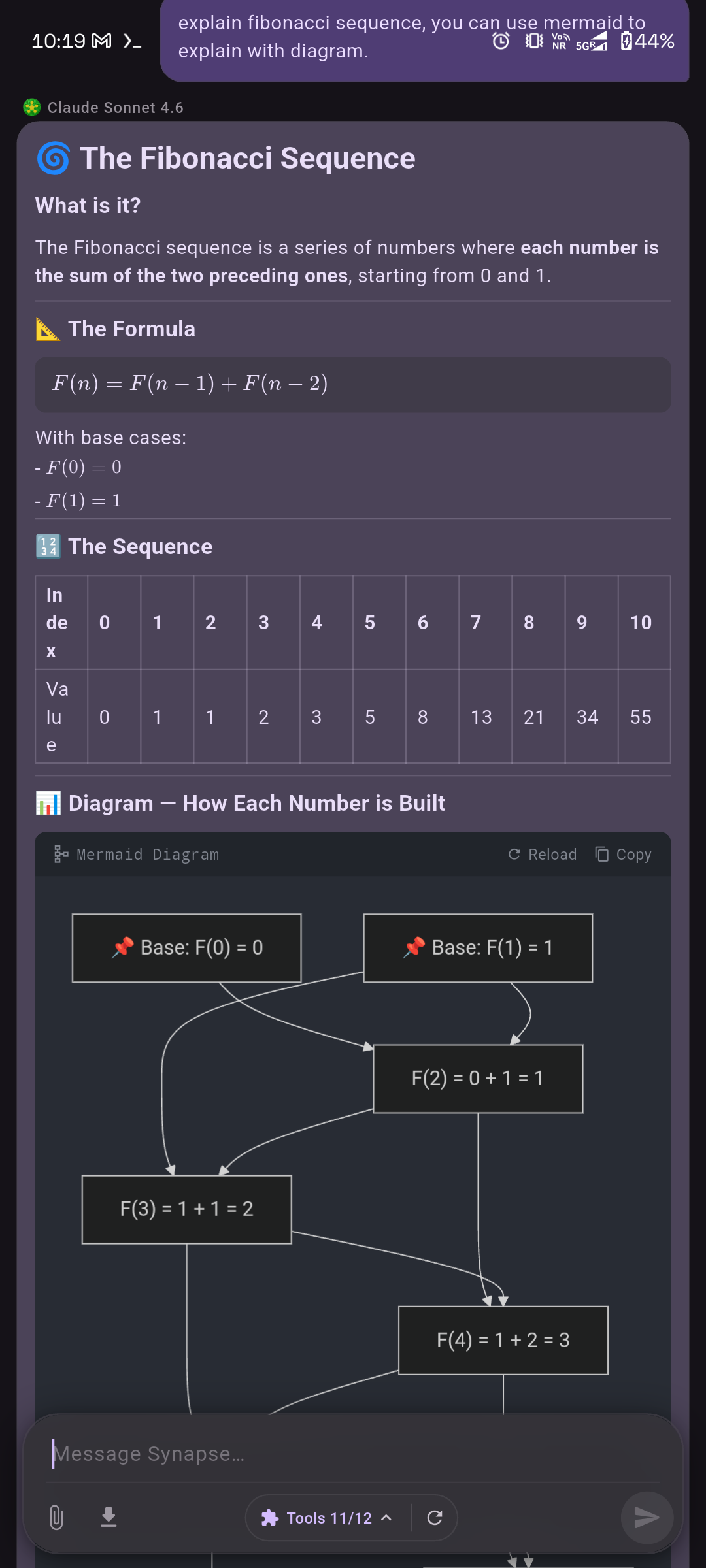
The Fibonacci response from earlier. The LLM’s output renders as rich markdown: a heading with emoji, the recurrence formula in a LaTeX math block, base cases as a bullet list, a data table with index/value columns, and a Mermaid dependency graph showing how each F(n) is built from F(n-1) and F(n-2). The Mermaid block has a header bar with “Reload” and “Copy” buttons to re-render or grab the source.
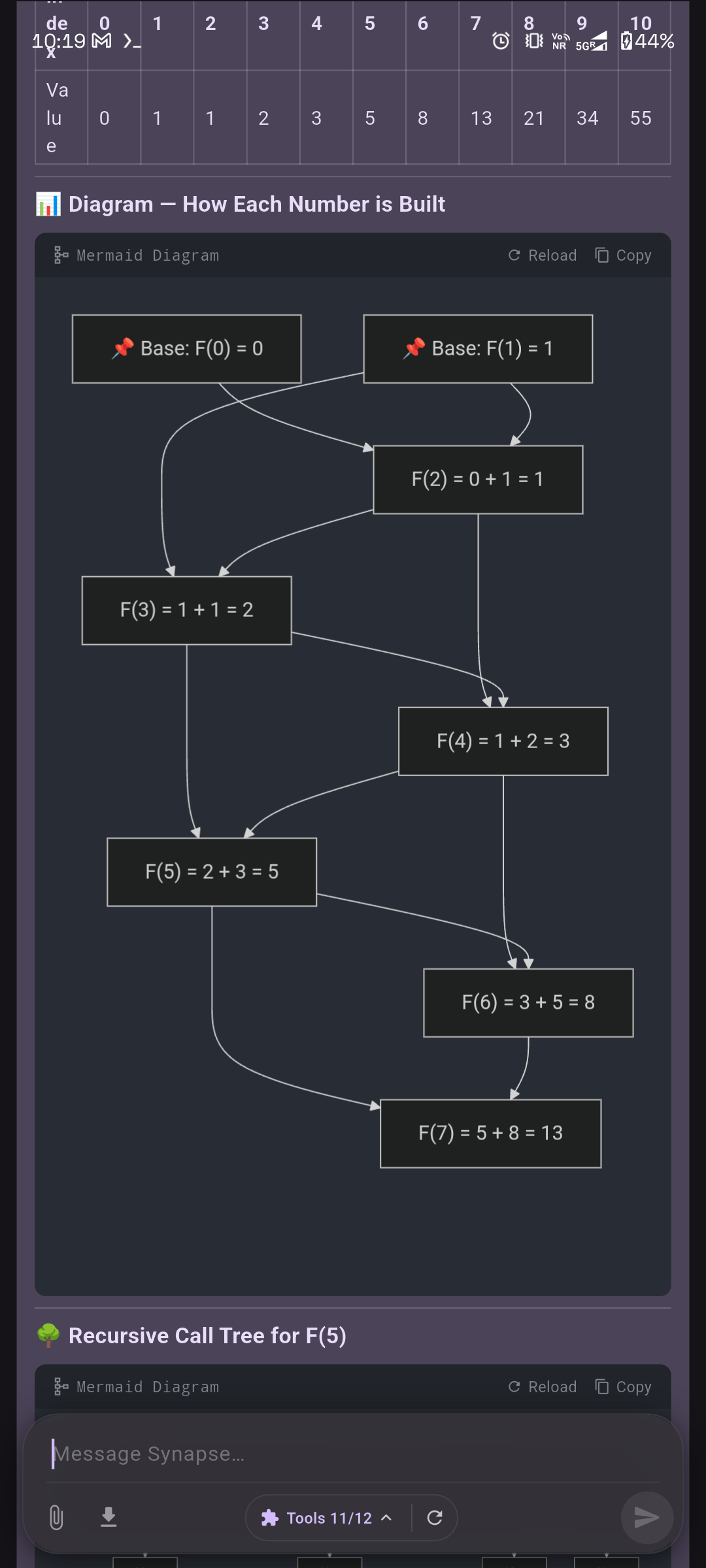
Scrolling down — the full Mermaid dependency graph traces arrows from the base cases F(0)=0 and F(1)=1 all the way up to F(7)=13. Below it, a second Mermaid diagram begins: the recursive call tree for F(5).
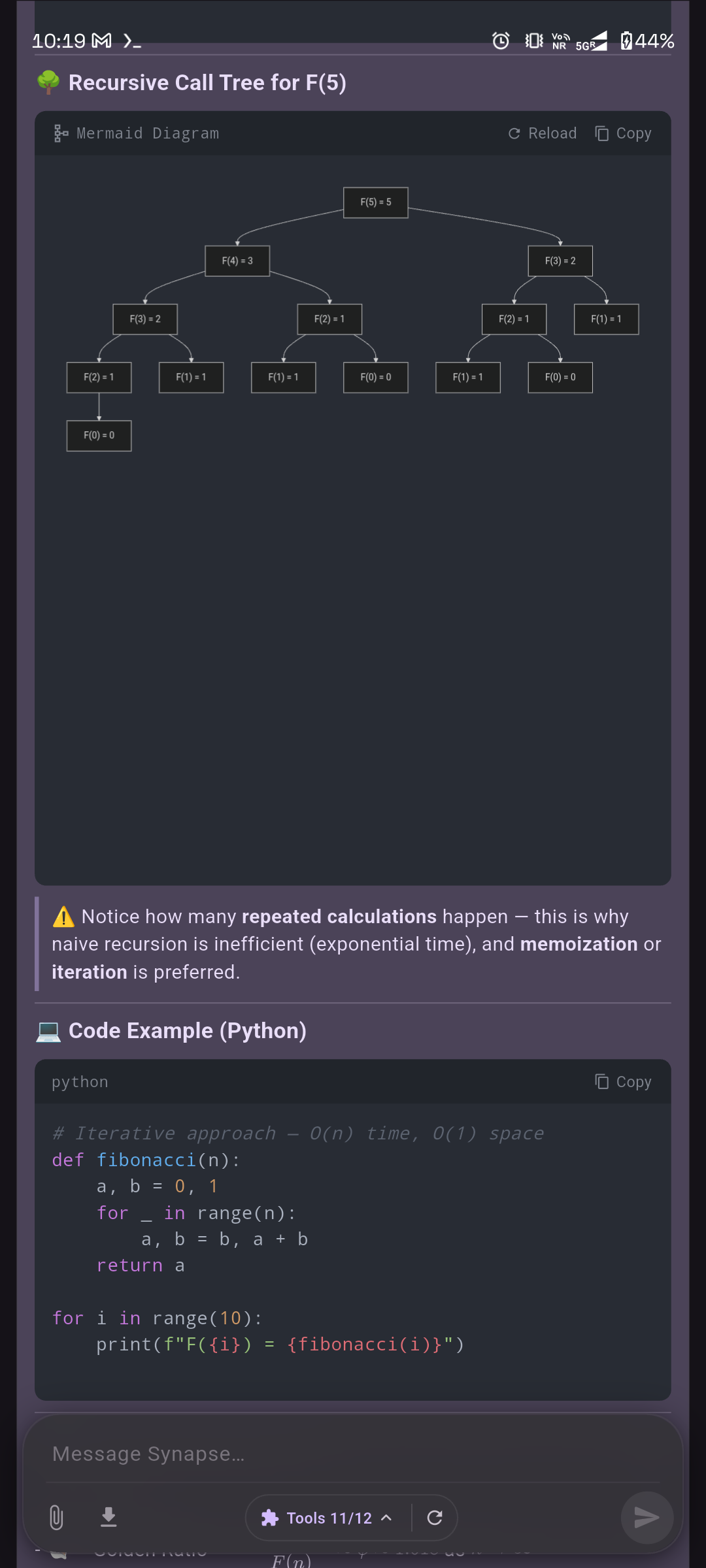
The recursive call tree shows every function call that naive recursion makes for F(5) — visually exposing the repeated sub-problems. Below the diagram, a blockquote callout warns about exponential time complexity and suggests memoization or iteration. Then a “Code Example (Python)” section with a syntax-highlighted code block using the Atom One Dark theme, with a language label and copy button.
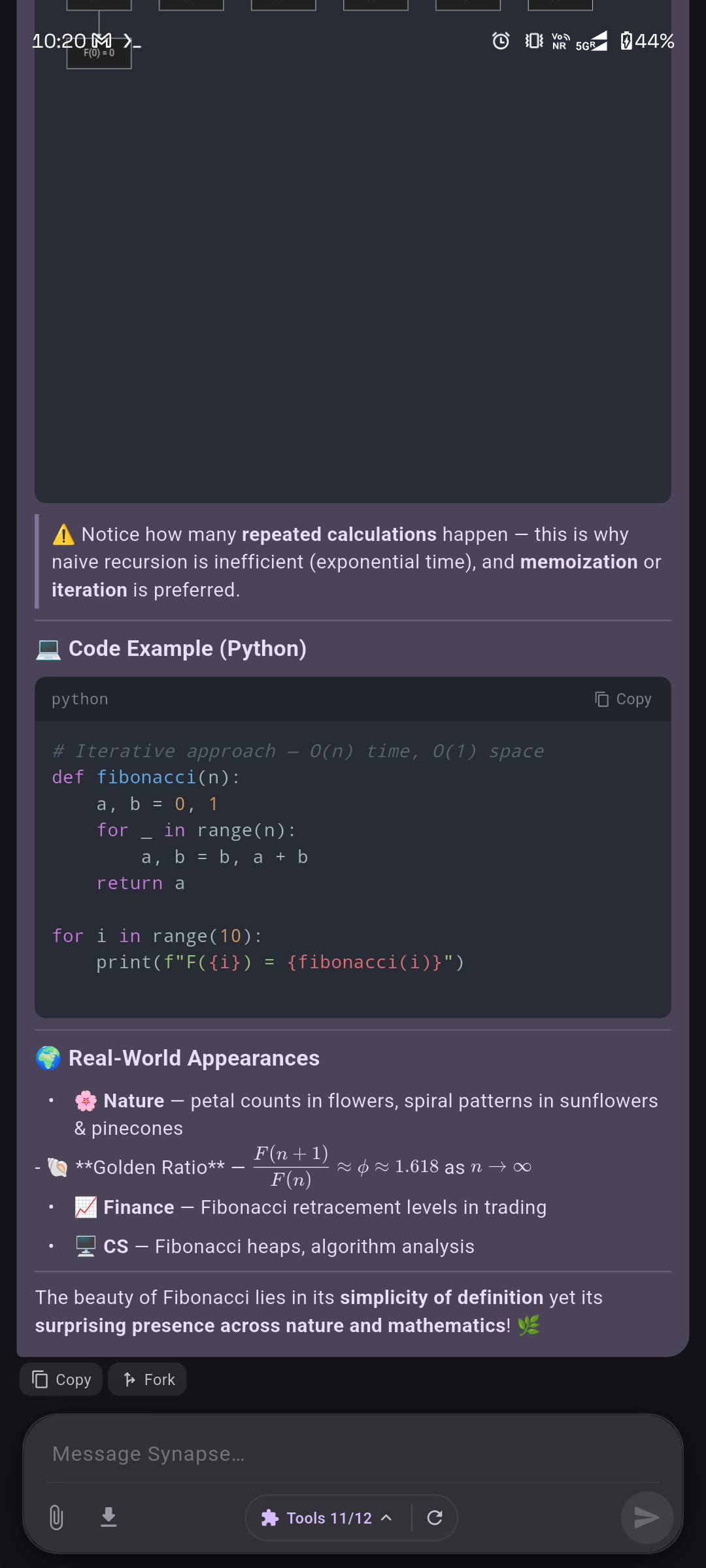
The bottom of the response: the Python code block continues, followed by a “Real-World Appearances” section with emoji bullet points (nature, golden ratio with a rendered LaTeX fraction, finance, CS). The response ends with a closing statement in bold. Below the message, “Copy” and “Fork” action buttons — Copy grabs the full response text, Fork branches the conversation from this point into a new session.
On wide screens (tablets, Chromebooks), a persistent sidebar shows chat history alongside the main chat area.
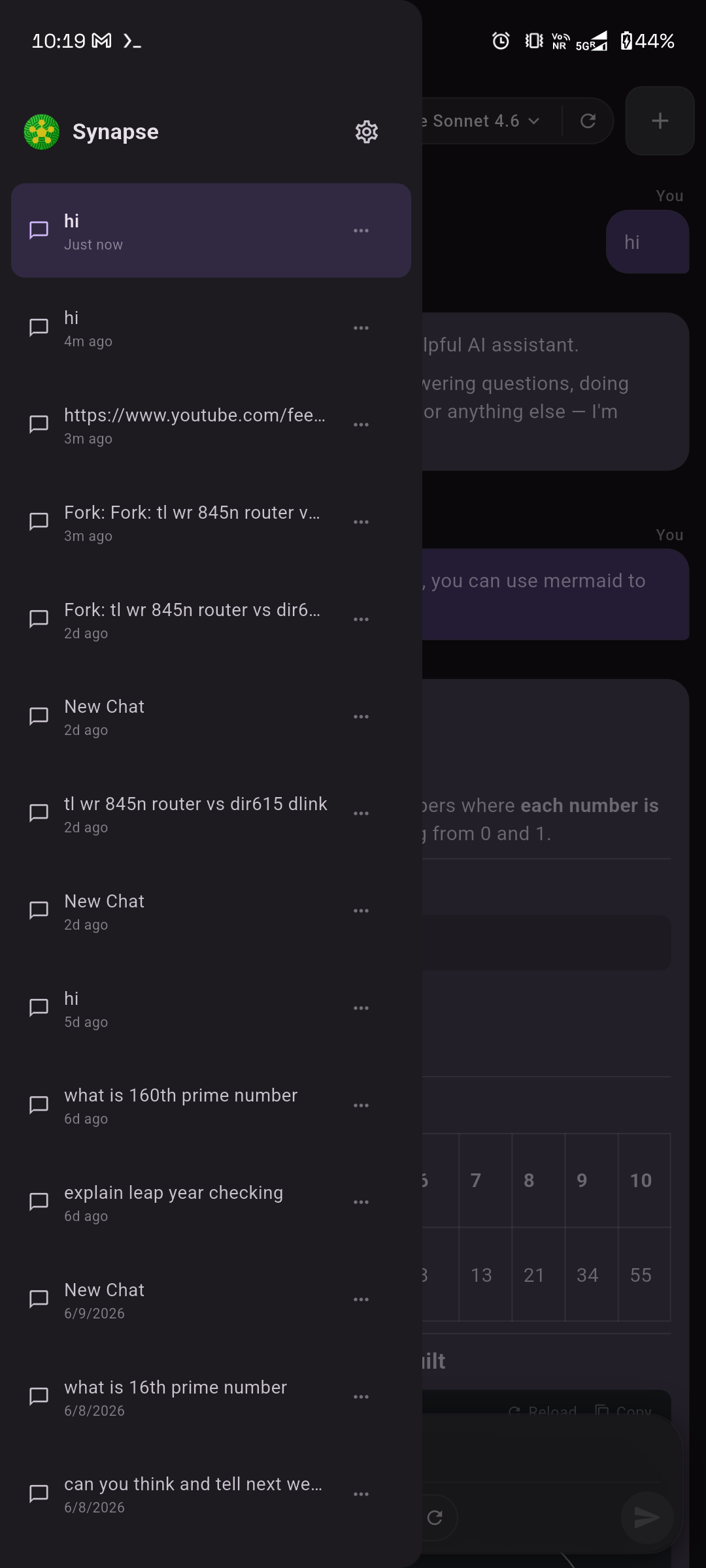
The navigation drawer on narrow screens (persistent sidebar on tablets). Sessions are listed with auto-generated names from the first message, relative timestamps (“Just now”, “4m ago”, “2d ago”, “6/8/2026”), and a three-dot overflow menu for rename, export, and delete. Forked conversations show up with a “Fork:” prefix. The Synapse logo and a settings gear sit at the top.
Sessions persist across app restarts. You can edit any message and regenerate, fork a conversation from any point, export as JSON, or copy individual messages.
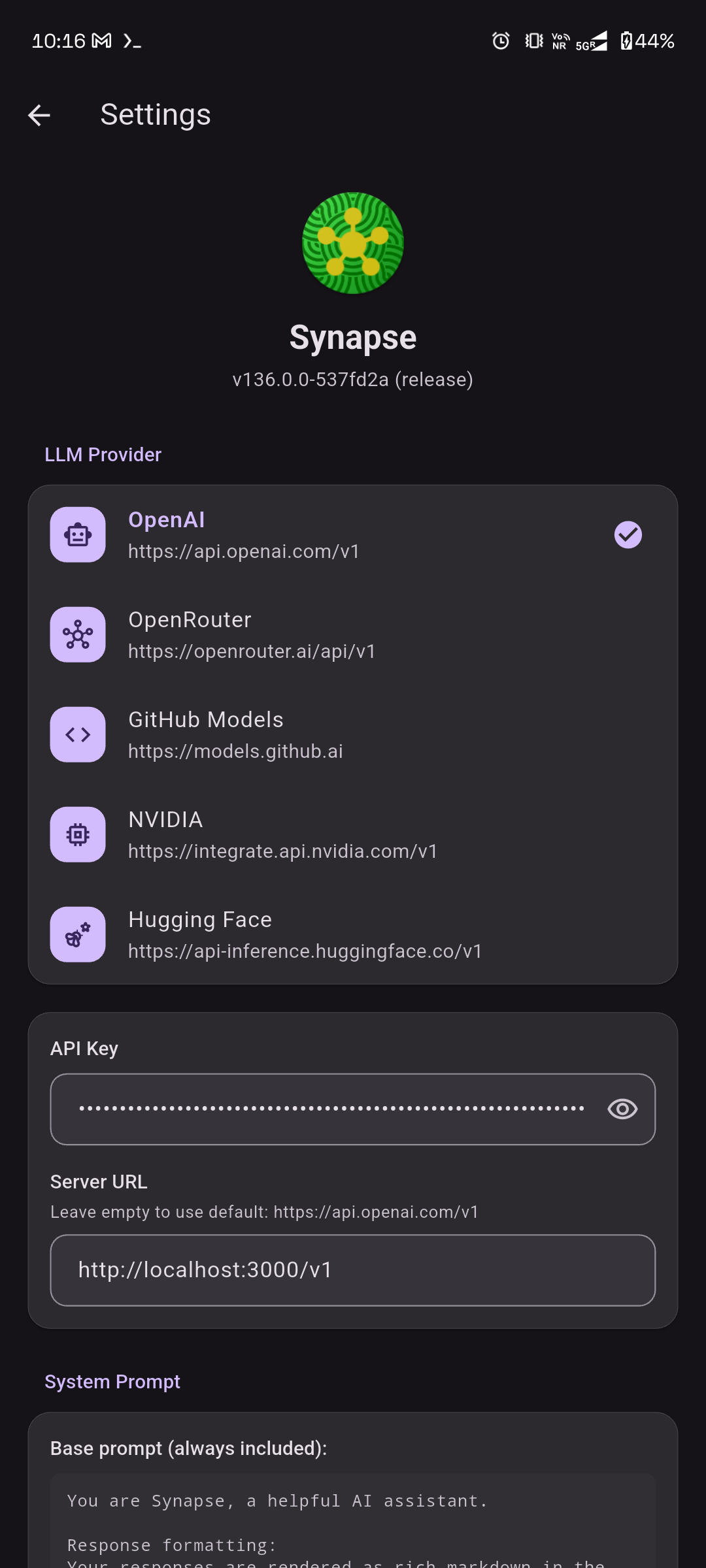
The settings screen. At the top, the app logo and version (v136.0.0-537fd2a, release channel). The LLM Provider section lists five providers — OpenAI, OpenRouter, GitHub Models, NVIDIA, and Hugging Face — each with its API endpoint. Below that, fields for API key (masked with a visibility toggle), a custom server URL override (useful for proxies or local setups), and the base system prompt that’s always prepended to conversations.
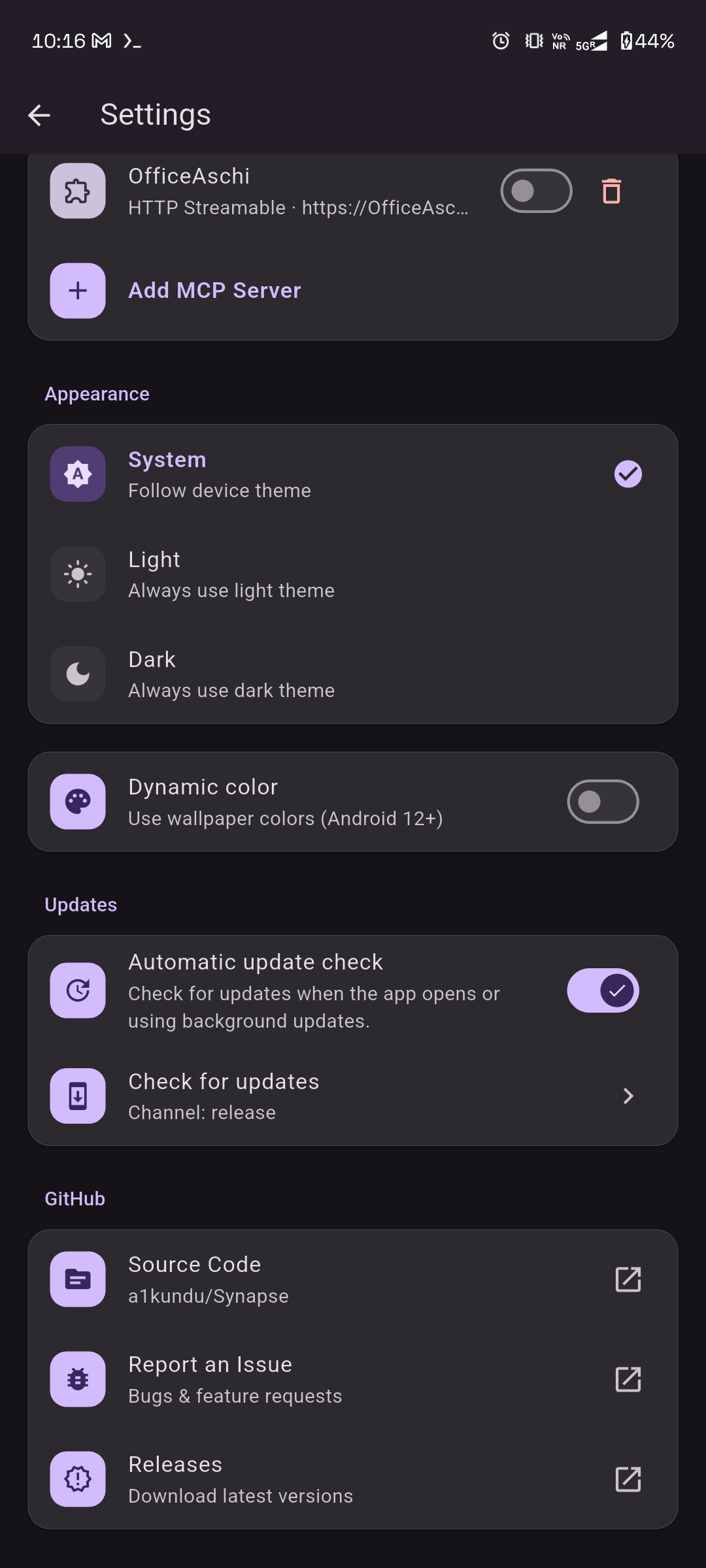
Scrolling further: the MCP server section shows a configured OfficeAschi server (HTTP Streamable transport) with an enable toggle and delete button, plus an “Add MCP Server” button. The Appearance section has System/Light/Dark theme modes and a Dynamic Color toggle for Material You on Android 12+. The Updates section shows automatic update checking with the release channel, and a manual “Check for updates” button. At the bottom, GitHub links to Source Code, Report an Issue, and Releases.
Self-Updating
Synapse isn’t on the Play Store — it ships as a sideloaded APK from GitHub Releases. So it has its own update pipeline baked in.
CI stamps every build with a build number and short SHA. Releases are tagged by channel (debug / release / pr{N}), so the app only sees updates for the channel it was built from. Every 6 hours, a Workmanager background task hits the GitHub Releases API, filters for the current channel, and compares build numbers.
The Point
Synapse started because I wanted to book office seats from my phone without tapping through a calendar grid. It’s now a general-purpose AI agent that fits in my pocket.
The core idea hasn’t changed: bring your own LLM, connect your own tools, get things done. No vendor lock-in, no subscription walls, no on-device model requirement. Just a clean bridge between the models you already pay for and the tools you actually use.
You can grab the latest APK from GitHub Releases. Found a bug or want a particular feature? Open an issue.