DesktopClockWidget — A Frameless, Always-On-Top WPF Clock for Windows
A tiny, unobtrusive clock that lives on your desktop and stays out of your way.
Table of Contents
- Why Another Clock?
- What It Looks Like
- Project Structure
- The Window — Frameless, Transparent, Invisible to Alt+Tab
- The Analog Clock Face
- Five One-Click Styles
- Full Color Customization
- Alarm
- Stopwatch and Countdown Timer
- Persisting Settings
- Smart Always on Top
- Building and Running
- Fork It
1. Why Another Clock?
Windows has a system clock. Rainmeter has a thousand clock skins. Yet every time I wanted a simple, always-visible clock that:
- didn’t live in the taskbar or system tray,
- didn’t clutter Alt+Tab,
- showed both analog and digital time,
- didn’t require a separate runtime or a 200 MB skin engine,
…I came up empty. So I built one.
DesktopClockWidget is a single-file WPF application targeting .NET 10. It sits in the top-right corner of your screen, fully transparent, always on top, completely invisible to the taskbar and Alt+Tab switcher — and it does nothing else unless you right-click it.
2. What It Looks Like
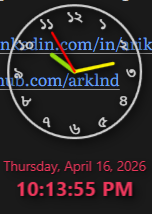
The widget ships with five preset styles selectable from the right-click context menu:
| Style | Description |
|---|---|
| Classic | Analog + digital, semi-transparent dark background |
| Minimal Digital | Digital only, fully transparent background, lightweight font |
| Slim Ring | Analog with a very transparent background and thin hands |
| Skeleton | Analog with fully transparent background and tick markers |
| HUD Overlay | Digital only, transparent green-on-black Consolas display with border glow |
Size options are Small (50%), Medium (100%), and Large (150%), plus a Digital Only mode that hides the analog face entirely for the most compact footprint.
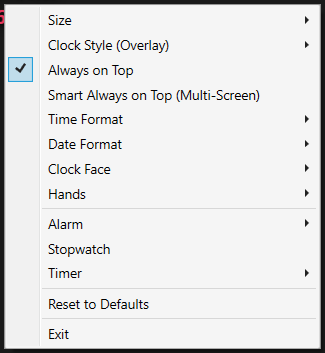
Everything is accessible from a right-click context menu — no settings window, no system tray icon, no separate config file to hunt down.
3. Project Structure
The project is intentionally minimal — no MVVM framework, no NuGet dependencies beyond what ships with WPF:
DesktopClockWidget/
├── App.xaml / App.xaml.cs       # Application entry point
├── MainWindow.xaml              # All UI: analog face, digital display, stopwatch, timer
├── MainWindow.xaml.cs           # All logic: timers, drawing, context menu handlers
├── ClockSettings.cs             # Serializable settings class (JSON, LocalAppData)
├── AlarmDialog.xaml/.cs         # Alarm set dialog
├── TimerDialog.xaml/.cs         # Countdown timer set dialog
└── AssemblyInfo.cs
Everything lives in one window and one settings class. There is no view model, no dependency injection, no plugin system. The philosophy: keep it small enough to read in an afternoon.
4. The Window — Frameless, Transparent, Invisible to Alt+Tab
Getting a WPF window to truly disappear from the shell requires two things.
First, the XAML declares the window frameless and transparent:
<Window
    WindowStyle="None"
    AllowsTransparency="True"
    Background="Transparent"
    ShowInTaskbar="False"
    ResizeMode="NoResize"
    MouseLeftButtonDown="Window_MouseLeftButtonDown">
ShowInTaskbar="False" removes it from the taskbar, but it still appears in Alt+Tab. Fixing that requires a Win32 call.
Second, on load the window style is patched with WS_EX_TOOLWINDOW via P/Invoke:
[DllImport("user32.dll", SetLastError = true)]
private static extern int GetWindowLong(IntPtr hWnd, int nIndex);

[DllImport("user32.dll")]
private static extern int SetWindowLong(IntPtr hWnd, int nIndex, int dwNewLong);

private const int GWL_EXSTYLE   = -20;
private const int WS_EX_TOOLWINDOW = 0x00000080;

private void MainWindow_Loaded(object sender, RoutedEventArgs e)
{
    IntPtr hWnd = new WindowInteropHelper(this).Handle;
    int exStyle = GetWindowLong(hWnd, GWL_EXSTYLE);
    SetWindowLong(hWnd, GWL_EXSTYLE, exStyle | WS_EX_TOOLWINDOW);

    // Position: top-right of primary monitor, 50px from edge
    Left = SystemParameters.PrimaryScreenWidth - ActualWidth - 50;
    Top = 50;
}
WS_EX_TOOLWINDOW is the extended window style that tells the shell to treat the window as a floating tool palette — it disappears from both the taskbar and the Alt+Tab switcher entirely.
Dragging is handled by forwarding the left mouse button down event to DragMove():
private void Window_MouseLeftButtonDown(object sender, MouseButtonEventArgs e)
    => DragMove();
5. The Analog Clock Face
The clock face is drawn entirely with WPF vector graphics — Ellipse, Line, and TextBlock elements in a Canvas. No images, no bitmaps, no external resources.
The face is a Viewbox wrapping a fixed-size Canvas, so it scales cleanly to any size factor without pixelation.
Hour markers use Bangla digits (০–১২) or English digits (1–12), rendered as TextBlock elements rotated and positioned around the circumference with a RotateTransform. Every hour position is calculated:
double angle    = (i / 12.0) * 360 - 90; // -90 so 12 is at top
double radians  = angle * Math.PI / 180;
double x = cx + r * Math.Cos(radians);
double y = cy + r * Math.Sin(radians);
Clock hands are Line elements whose RenderTransform is a RotateTransform updated once per second:
double hourAngle   = (now.Hour % 12 + now.Minute / 60.0) / 12.0 * 360;
double minuteAngle = (now.Minute + now.Second / 60.0) / 60.0 * 360;
double secondAngle = now.Second / 60.0 * 360;

HourHandRotate.Angle   = hourAngle;
MinuteHandRotate.Angle = minuteAngle;
SecondHandRotate.Angle = secondAngle;
The hour hand moves smoothly between hour positions (it accounts for the current minute), and the minute hand moves smoothly between minute marks (it accounts for the current second). The second hand ticks discretely each second.
The face also supports tick marks and dot markers at each hour position, with larger dots and thicker ticks at the quarter hours (3, 6, 9, 12).
6. Five One-Click Styles
Each preset style is a single method that sets a batch of properties on _settings and calls ApplySettings(). For example, HUD Overlay:
private void SetStyle_HUD(object sender, RoutedEventArgs e)
{
    _settings.IsDigitalOnly    = true;
    _settings.BackgroundColor  = "#CC000000";
    _settings.TimeTextColor    = "#00FF00";
    _settings.DateTextColor    = "#00BB00";
    _settings.ClockFaceStyle   = "HUD";
    _settings.Save();
    ApplySettings();
}
ApplySettings() reads the settings object and pushes every property to the UI: colors, visibility flags, scale factor, format strings. It’s the single source of truth for the rendered state.
7. Full Color Customization
Every visual element has an independently configurable color:
- Clock face / ring
- Background (supports full alpha — use #00000000 for completely transparent)
- Hour, minute, and second hands
- Date text and time text
Colors are stored as hex strings (#AARRGGBB or #RRGGBB) in the settings JSON. The context menu offers preset swatches for each element, plus a Custom Color… option that opens the System.Windows.Forms.ColorDialog:
private void SetColor_Face_Custom(object sender, RoutedEventArgs e)
{
    var dialog = new System.Windows.Forms.ColorDialog { FullOpen = true };
    if (dialog.ShowDialog() == System.Windows.Forms.DialogResult.OK)
    {
        var c = dialog.Color;
        _settings.ClockFaceColor = $"#{c.A:X2}{c.R:X2}{c.G:X2}{c.B:X2}";
        _settings.Save();
        ApplySettings();
    }
}
The full-open color dialog exposes the alpha channel slider, so the background can be dialed in to any opacity.
8. Alarm
The alarm is set via AlarmDialog — a small WPF dialog with hour/minute/AM-PM dropdowns. The selected time is stored as a string in settings ("HH:mm") so it persists across restarts.
Once armed, a small indicator appears on the widget face. At trigger time:
- A
DispatcherTimerfires every 500 ms to flash the indicator between red and gold. - A second
DispatcherTimerfires every 3 seconds to playSystemSounds.Exclamation.
private void AlarmFlash_Tick(object? sender, EventArgs e)
{
    _alarmFlashState = !_alarmFlashState;
    AlarmIndicator.Fill = _alarmFlashState
        ? new SolidColorBrush(Colors.Red)
        : new SolidColorBrush(Colors.Gold);
}

private void AlarmSound_Tick(object? sender, EventArgs e)
    => System.Media.SystemSounds.Exclamation.Play();
Dismiss by clicking the indicator or via the context menu. The alarm auto-dismisses and clears from settings on dismiss.
9. Stopwatch and Countdown Timer
Stopwatch
The stopwatch uses System.Diagnostics.Stopwatch for accuracy and a DispatcherTimer at 50 ms for display updates — so it renders at ~20 fps, showing hh:mm:ss.ff.
private void StopwatchTimer_Tick(object? sender, EventArgs e)
{
    var e = _stopwatch.Elapsed;
    StopwatchDisplay.Text =
        $"{(int)e.TotalHours:D2}:{e.Minutes:D2}:{e.Seconds:D2}.{e.Milliseconds / 10:D2}";
}
Start/pause and reset buttons are rendered directly in the widget below the clock face.
Countdown Timer
The countdown timer is configured via TimerDialog — hours, minutes, seconds fields, defaulting to 5 minutes. It ticks down with a DispatcherTimer at 1-second intervals. On expiry it behaves like the alarm: red/orange flashing and a repeating system sound every 3 seconds.
Both panels have independently persistable visibility — if you close the app with the stopwatch visible, it comes back visible on next launch.
10. Persisting Settings
ClockSettings is a plain C# class serialized to JSON via System.Text.Json. Settings are stored at:
%LOCALAPPDATA%\DesktopClockWidget\settings.jsonprivate static readonly string SettingsPath = Path.Combine(
Environment.GetFolderPath(Environment.SpecialFolder.LocalApplicationData),
"DesktopClockWidget",
"settings.json"
);
public void Save()
{
Directory.CreateDirectory(Path.GetDirectoryName(SettingsPath)!);
File.WriteAllText(SettingsPath,
JsonSerializer.Serialize(this, new JsonSerializerOptions { WriteIndented = true }));
}
public static ClockSettings Load()
{
if (File.Exists(SettingsPath))
return JsonSerializer.Deserialize<ClockSettings>(File.ReadAllText(SettingsPath))
?? new ClockSettings();
return new ClockSettings();
}Every context menu action calls _settings.Save() immediately after changing a value, so settings survive even a hard close. On startup ClockSettings.Load() is called before ApplySettings(), so the widget comes back exactly as you left it — same style, same colors, same alarm, same panel visibility.
11. Smart Always on Top
The basic Always on Top toggle sets Topmost = true/false. The Smart Always on Top mode goes further: it polls GetSystemMetrics(SM_CMONITORS) and activates Topmost only when more than one monitor is detected.
[DllImport("user32.dll")]
private static extern int GetSystemMetrics(int nIndex);

private const int SM_CMONITORS = 80;

private void CheckSmartTopmost()
{
    if (_settings.AutoTopmost)
        Topmost = GetSystemMetrics(SM_CMONITORS) > 1;
}
This is useful if you use the widget on a single laptop and sometimes connect an external monitor: the clock pins itself to the top of the stack only when the second screen is live.
12. Building and Running
Prerequisites: .NET 10 SDK, Windows 10/11 x64.
git clone https://github.com/arklnd/DesktopClockWidget.git
cd DesktopClockWidget

# Run directly from source
dotnet run

# Self-contained single-file publish (no .NET runtime needed on the target machine)
dotnet publish -c Release -r win-x64 \
  --self-contained true \
  -p:PublishSingleFile=true \
  -p:IncludeNativeLibrariesForSelfExtract=true \
  -p:PublishReadyToRun=true
You can also open DesktopClockWidget.sln in Visual Studio 2022 and press F5.
The self-contained publish produces a single .exe you can drop anywhere — no installer, no runtime prerequisites.
13. Fork It
The project started as a weekend experiment and grew commit by commit — from a bare analog face, through color pickers and size modes, to alarm and timer dialogs. If you want a frameless WPF clock that gets out of your way, feel free to fork and make it yours: